# Copyright 2021 Manna Harbour
# https://github.com/manna-harbour/miryoku
* Miryoku ZMK Quickstart Guide [[https://raw.githubusercontent.com/manna-harbour/miryoku/master/data/logos/miryoku-roa-32.png]]
A personalised build of [[https://github.com/manna-harbour/miryoku_zmk][Miryoku ZMK]] can be [[#initial-setup][set up]], [[#build][built]], [[#download][downloaded]], and [[#flash][flashed]] onto your keyboard in a few minutes without installing any software or editing any files.
** Initial Setup
- [[https://github.com/signup][Create a GitHub account]].
- [[https://github.com/login][Login to GitHub]].
- Visit https://github.com/manna-harbour/miryoku_zmk.
- Press the ~Fork~ button in the top right.
#+html:  - Visit https://github.com/?q=miryoku_zmk.
- Select your fork of ~miryoku_zmk~ from the list on the left.
- Select the ~Actions~ tab.
#+html:
- Visit https://github.com/?q=miryoku_zmk.
- Select your fork of ~miryoku_zmk~ from the list on the left.
- Select the ~Actions~ tab.
#+html:  - Press the ~I understand my workflows, go ahead and enable them~ button.
** Build
Start here to build new firmware after completing the [[#initial-setup][initial setup]].
- Visit https://github.com/?q=miryoku_zmk.
- Select your fork of ~miryoku_zmk~ from the list on the left.
- Press the ~Fetch upstream~ button in the top right.
#+html:
- Press the ~I understand my workflows, go ahead and enable them~ button.
** Build
Start here to build new firmware after completing the [[#initial-setup][initial setup]].
- Visit https://github.com/?q=miryoku_zmk.
- Select your fork of ~miryoku_zmk~ from the list on the left.
- Press the ~Fetch upstream~ button in the top right.
#+html: 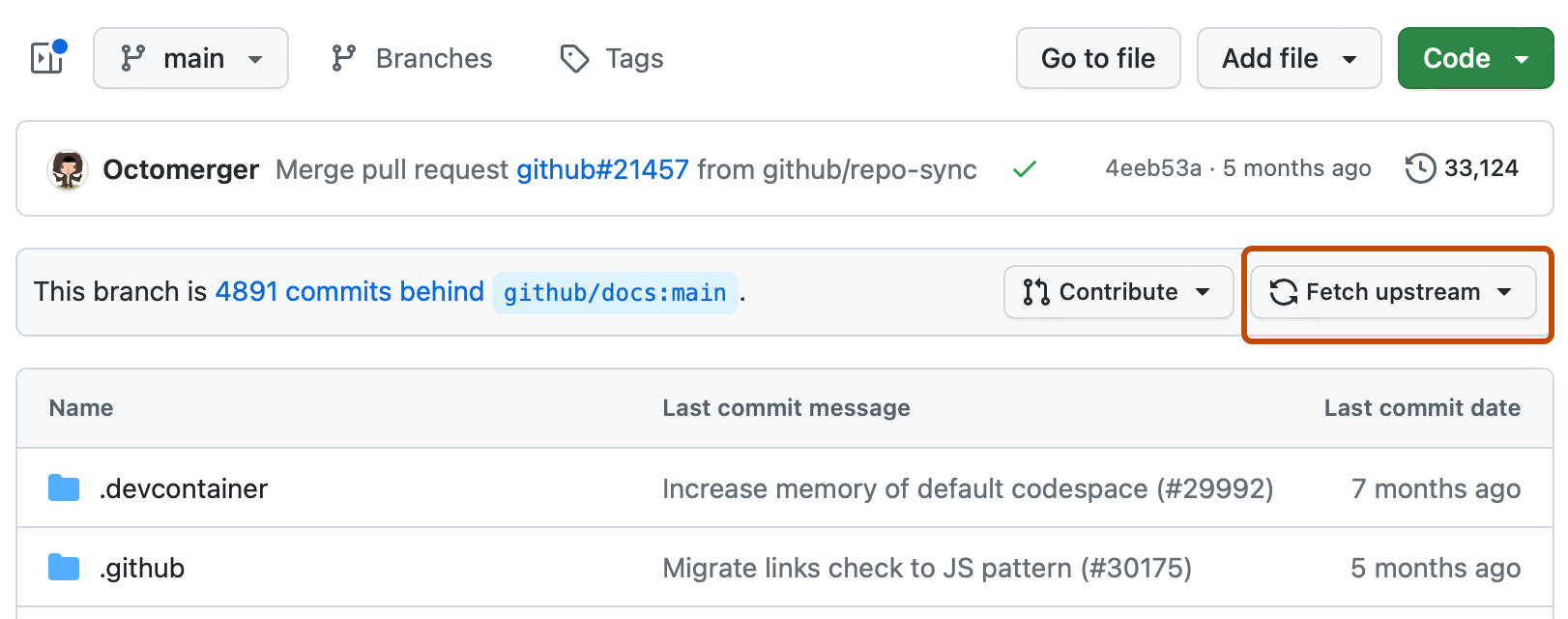 - Press the ~Fetch and merge~ button in the popup if it is enabled.
#+html:
- Press the ~Fetch and merge~ button in the popup if it is enabled.
#+html:  - Select the ~Actions~ tab.
#+html:
- Select ~Build Inputs~ from the ~Workflows~ list on the left.
- Press the ~Run workflow~ button on the right.
#+html:
- Select the ~Actions~ tab.
#+html:
- Select ~Build Inputs~ from the ~Workflows~ list on the left.
- Press the ~Run workflow~ button on the right.
#+html:  - Fill out the fields in the popup as [[https://github.com/manna-harbour/miryoku_zmk#fields--options][described]].
- Press the ~Run workflow~ button at the bottom of the popup.
#+html:
- Fill out the fields in the popup as [[https://github.com/manna-harbour/miryoku_zmk#fields--options][described]].
- Press the ~Run workflow~ button at the bottom of the popup.
#+html:  - Wait for the workflow run to complete.
** Download
Start here to download previously [[#build][built]] firmware.
- Visit https://github.com/?q=miryoku_zmk.
- Select your fork of ~miryoku_zmk~ from the list on the left.
- Select the ~Actions~ tab.
#+html:
- Select the workflow run from the list.
#+html:
- Wait for the workflow run to complete.
** Download
Start here to download previously [[#build][built]] firmware.
- Visit https://github.com/?q=miryoku_zmk.
- Select your fork of ~miryoku_zmk~ from the list on the left.
- Select the ~Actions~ tab.
#+html:
- Select the workflow run from the list.
#+html:  - Select the artifact at the bottom.
#+html:
- Select the artifact at the bottom.
#+html:  - Wait for the download to complete.
- Unzip the downloaded zip file.
** Flash
Start here to flash previously [[#download][downloaded]] firmware.
The downloaded zip will contain a ~uf2~ firmware file. For split keyboards the zip will contain separate firmware files for the left and right sides, and the following steps should be performed for each side.
- Connect the keyboard to the computer with a USB cable.
- Double tap the reset button rapidly (two presses within half a second). The keyboard will appear to the computer as a USB mass storage device.
- Copy the firmware file to the device. The keyboard will reset and the device will be removed.
**
[[https://github.com/manna-harbour][https://raw.githubusercontent.com/manna-harbour/miryoku/master/data/logos/manna-harbour-boa-32.png]]
- Wait for the download to complete.
- Unzip the downloaded zip file.
** Flash
Start here to flash previously [[#download][downloaded]] firmware.
The downloaded zip will contain a ~uf2~ firmware file. For split keyboards the zip will contain separate firmware files for the left and right sides, and the following steps should be performed for each side.
- Connect the keyboard to the computer with a USB cable.
- Double tap the reset button rapidly (two presses within half a second). The keyboard will appear to the computer as a USB mass storage device.
- Copy the firmware file to the device. The keyboard will reset and the device will be removed.
**
[[https://github.com/manna-harbour][https://raw.githubusercontent.com/manna-harbour/miryoku/master/data/logos/manna-harbour-boa-32.png]]